Step 1

Check that you have everything you need

Shipped to you by ElectroTime team

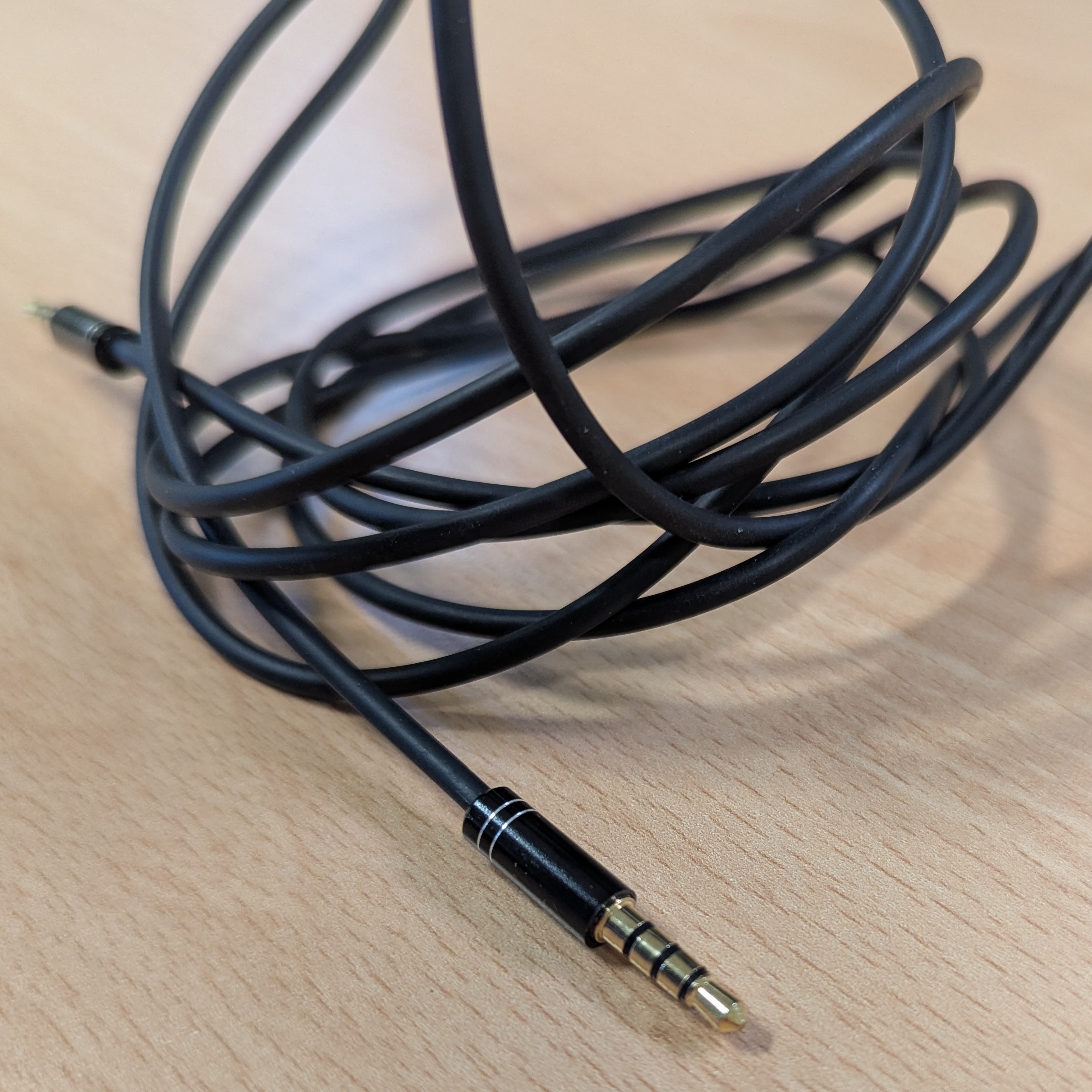
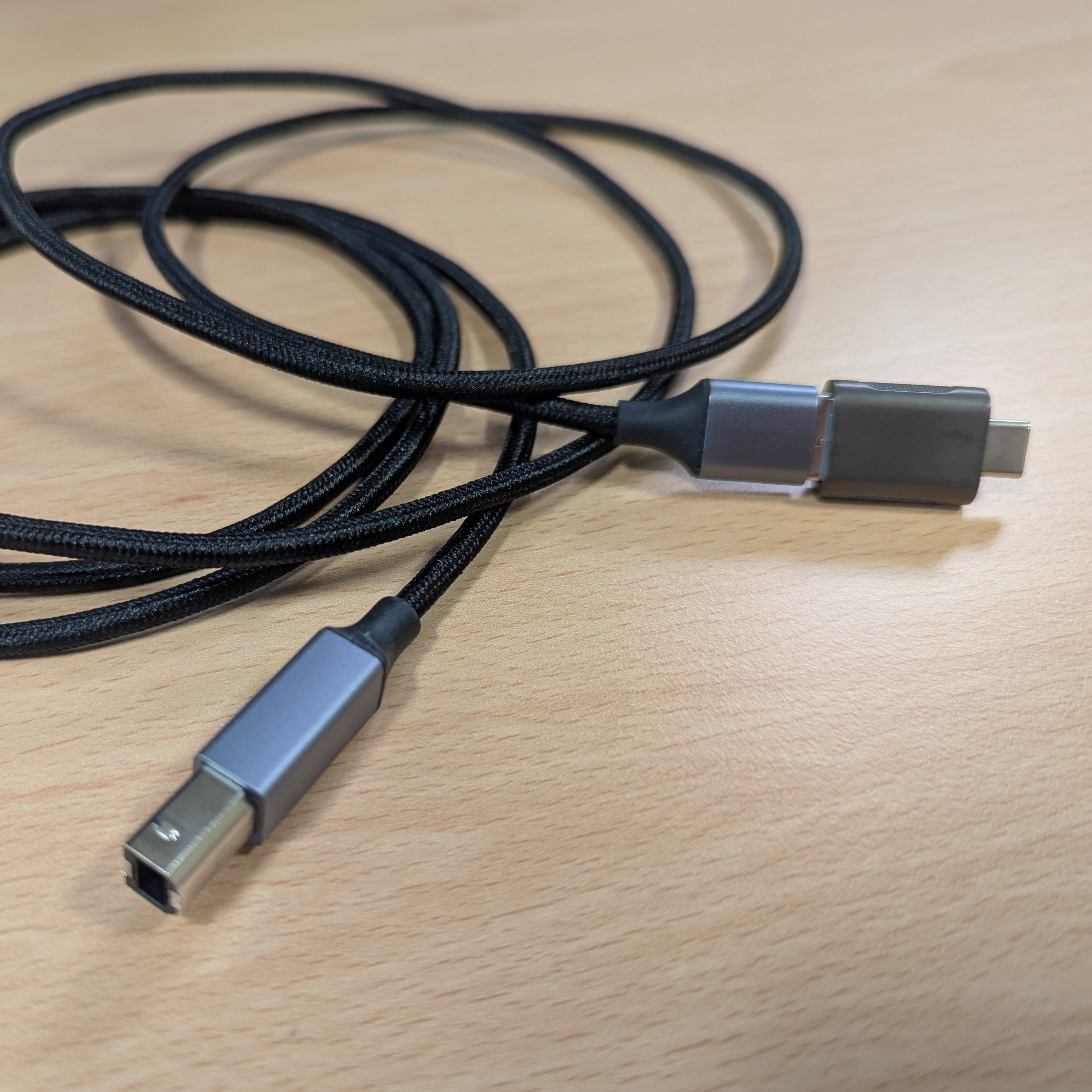
Audio cable USB cable & Adapter

  • [ ] ElectroTime device
  • [ ] Sound cable (3.5mm jack)
  • [ ] USB data cable with USB-C adapter
  • [ ] Velcro straps

Your lab equipment

  • [ ] Host computer; we recommend to bring your laptop with you to the lab
  • [ ] Lab stimulus pc with:
  • [ ] Screen on which you present visual stimuli
  • [ ] And/or audio output port on which you present audio stimuli
  • [ ] Trigger output over a thick DB37 parallel cable.

Step 2

Set up Device

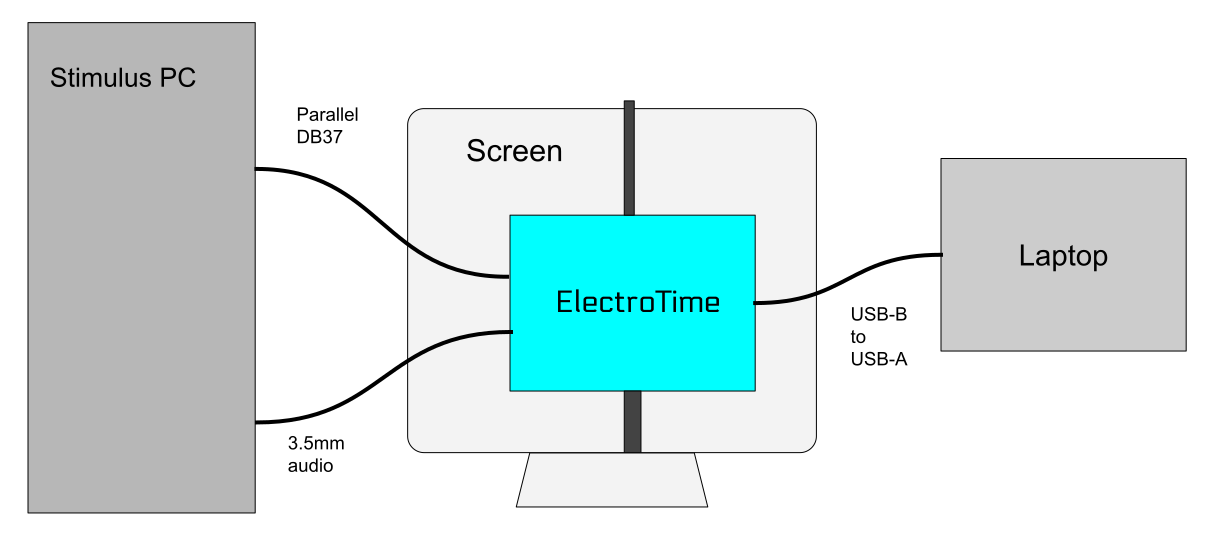
Schematic of the setup

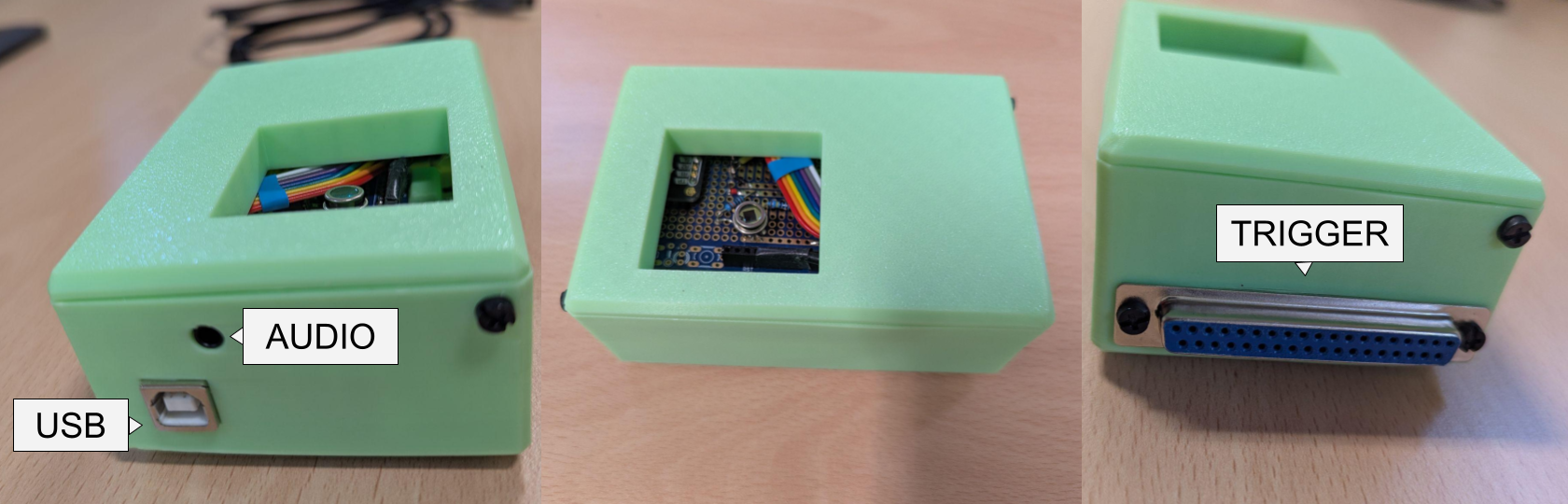
  • Your lab stimulus pc is connected to your acquisition device with a wide (~6cm) connector called DB37, also known as a printer cable or "parallel cable". Plug this connector into the electrotime
  • If your experiment has sound stimuli, use the provided cable to connect your stimulus pc's audio port (that normally would have the headphones) to the audio input on the electrotime
  • Using the provided USB cable, connect the Electrotime with your host laptop's USB. If your laptop only has USB-C, use the provided adapter, otherwise to use the larger USB-A, remove the adapter.
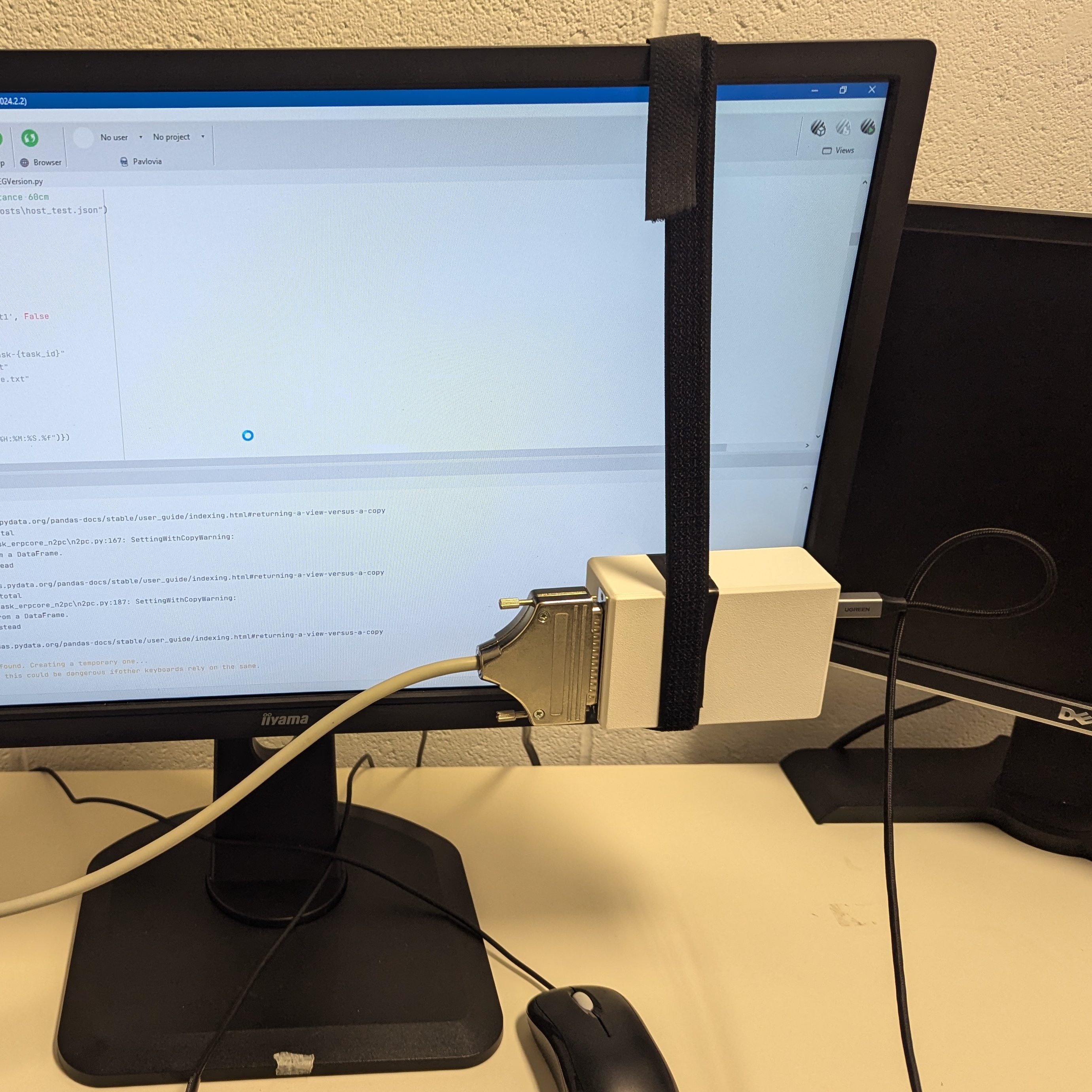
  • With the provided Velcro straps, strap the ElectroTime to your stimulus screen, placing it as close as possible to the part of the screen where stimuli are displayed.

ElectroTime Photos of Inputs and Outputs

ElectroTime positioned in front of bottom right corner of screen

Step 3

Download the app on your host laptop

The ElectroTime device is controlled from your laptop with a desktop application. Get the application here.

Find the downloaded zip file and extract the folder. There is no "installation" step. Simply place the folder where you would like to run it from (e.g. Desktop). Open the folder and double click the ElectroTime executable (the file with the lightning bolt icon) to start the app.

Step 4

Record!

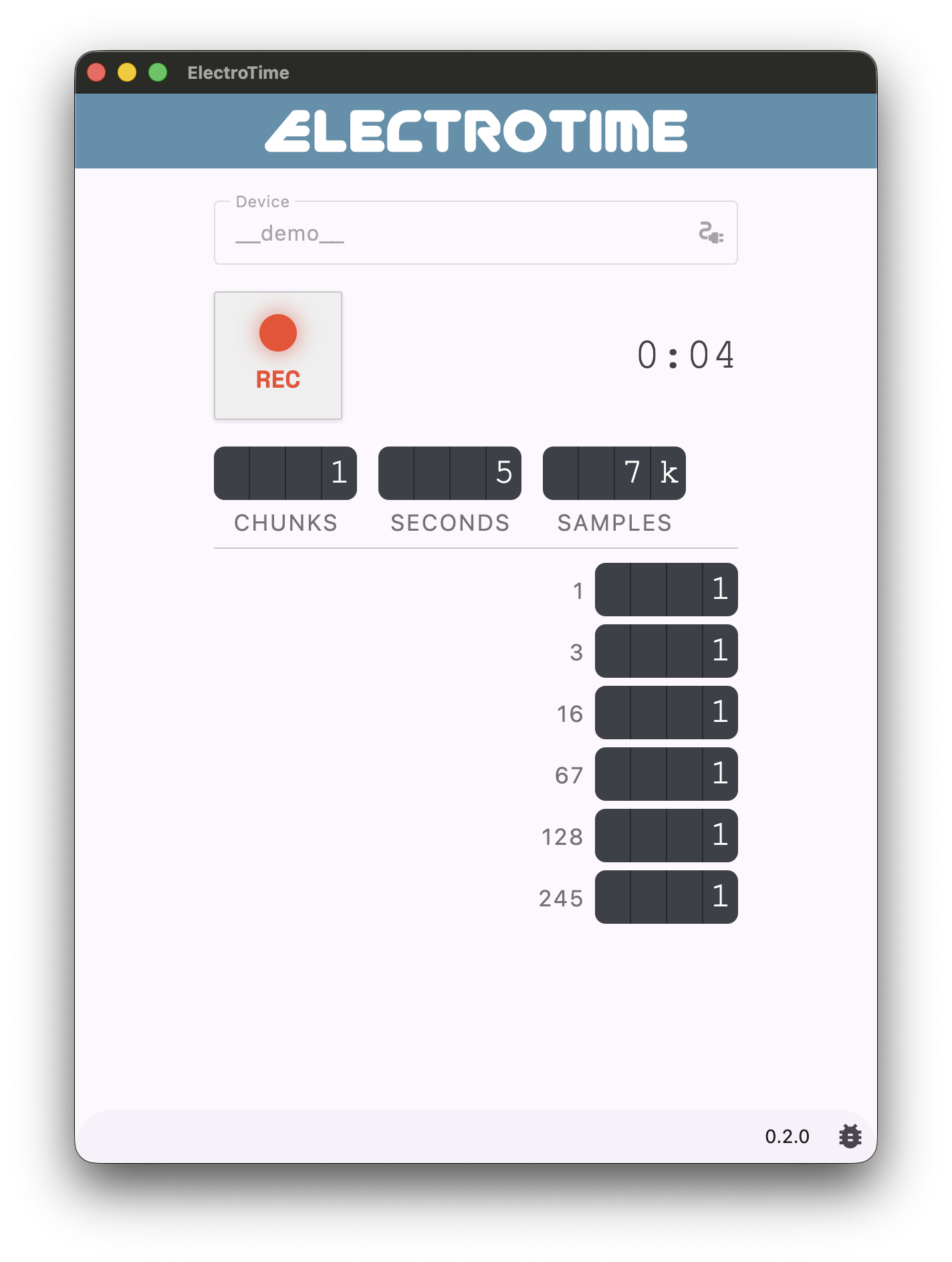
Application Screenshot

Run the app and you should see a drop-down to select the ElectroTime from a list of USB devices connected to your laptop.

If you're not sure which one it is, you can try them one by one. If it's something else, either nothing happens, or an error occurs. Restart the app if necessary.

Hit the record button to start reading data from the device. The data is recorded in blocks of 4-6 seconds (with breaks for transporting data in between). The app will update with a basic summary of the number of blocks (or "epochs") and the triggers seen.

We recommend running your experiment several times to get the best data coverage. You can hit the record button again to stop recording at any time.

Step 5

Send your data to us for analysis

You should find the recorded data as small text files, named electrotime_1234_123.txt in your Downloads folder. Compress these together and email the zip file to us at [email protected] or use a cloud file sharing link if necessary.